The main reason memory cards (like SD cards, microSD) and pen drives (USB flash drives) show less storage than the number printed on the cover is a combination of different measurement standards, some reserved space for device functioning, and minor formatting overhead.
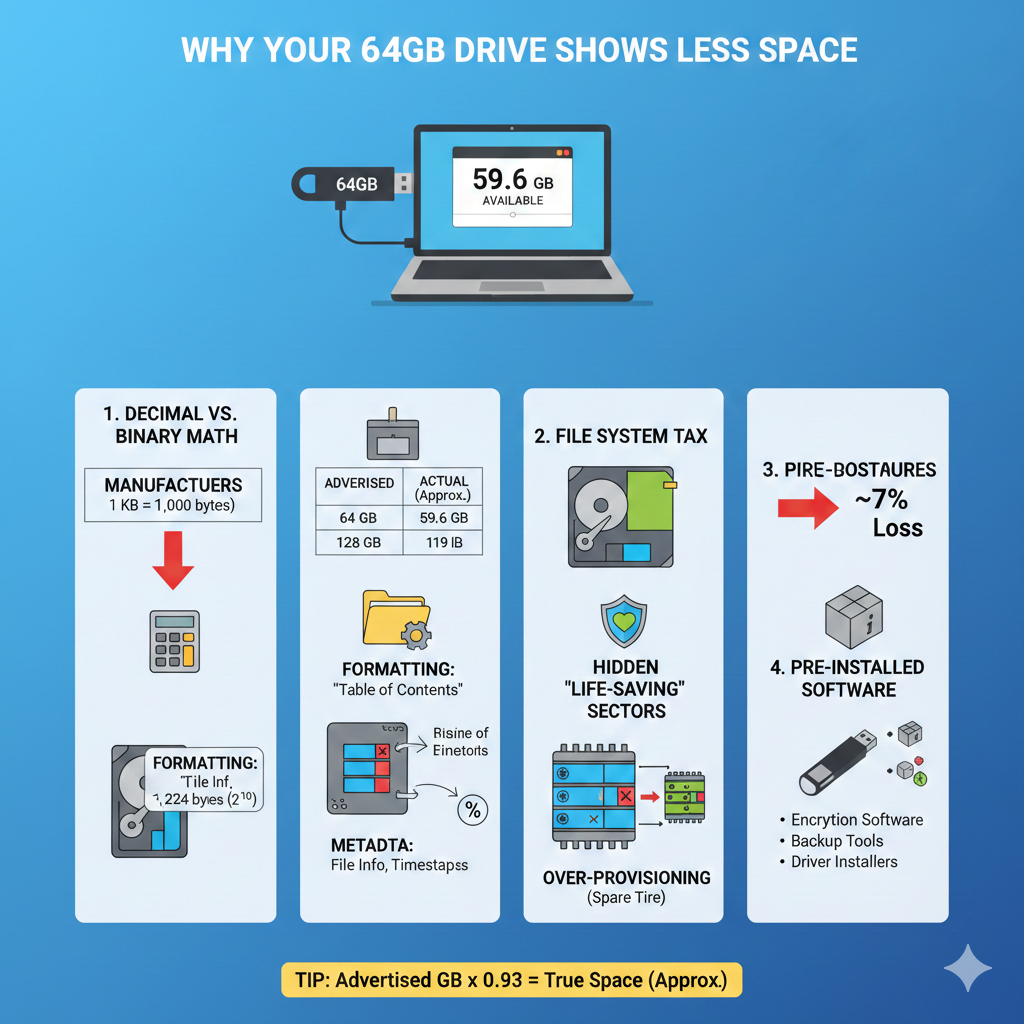
It’s not a scam or manufacturing defect in most cases from legitimate brands — it’s mostly mathematics and industry conventions.
1. The Big One: Decimal vs. Binary Numbering (The Main Culprit)
Manufacturers label capacity using the decimal system (base-10), which is standard in the storage industry and matches how SI prefixes (kilo, mega, giga) are officially defined:
- 1 GB = 1,000,000,000 bytes (10⁹ bytes)
- 1 MB = 1,000,000 bytes
- 1 KB = 1,000 bytes
Computers and operating systems (Windows, macOS, Linux, Android) almost always report storage using the binary system (base-2), because memory and storage addressing works in powers of 2:
- 1 GiB (gibibyte) = 1,073,741,824 bytes (2³⁰ bytes)
- 1 MiB = 1,048,576 bytes (2²⁰ bytes)
- 1 KiB = 1,024 bytes (2¹⁰ bytes)
This creates a gap of about 7–10% depending on capacity.
Real-world examples:
| Advertised (decimal) | Actual bytes | Shown in Windows (approx.) | Difference |
|---|---|---|---|
| 16 GB | 16,000,000,000 | ~14.9 GiB | ~7% |
| 32 GB | 32,000,000,000 | ~29.8 GiB | ~7% |
| 64 GB | 64,000,000,000 | ~59.6 GiB | ~7% |
| 128 GB | 128,000,000,000 | ~119 GiB | ~7% |
| 256 GB | 256,000,000,000 | ~238 GiB | ~7% |
| 1 TB (1000 GB) | 1,000,000,000,000 | ~931 GiB | ~7% |
The larger the device, the bigger the absolute difference looks (e.g., a “1 TB” drive shows roughly 931 GB in Windows).
Many people see “119 GB” on a “128 GB” pen drive and feel shortchanged — but the drive really has all 128,000,000,000 bytes; the OS is just using a larger unit size to count them.
2. Reserved Space for Flash Memory Management
Flash memory (NAND) used in memory cards and pen drives needs extra hidden space that isn’t available to the user:
- Over-provisioning → Manufacturers include 7–15% (sometimes more) extra NAND chips for wear leveling, bad block replacement, garbage collection, and extending lifespan. This is invisible to the OS.
- Spare area for ECC (error correction), firmware, address mapping tables, and backup areas in case of cell failure.
- Controller firmware and metadata structures also consume a small portion.
Reputable brands (SanDisk, Samsung, Kingston, Transcend, etc.) typically reserve around 4–10% for these functions on consumer drives. Cheaper or fake drives sometimes have much worse ratios.
3. File System and Formatting Overhead
When you format the drive (FAT32, exFAT, NTFS), the file system needs space for:
- File allocation tables
- Directory structures
- Cluster slack space
- Journaling (if used)
This usually takes only 0.5–2% on larger drives, but it’s still subtracted from the usable space.
Quick Summary – Why Your 128 GB Shows ~119 GB
- ~7% lost to binary vs decimal math (~119 GiB vs 128 GB)
- ~4–10% reserved for flash management and over-provisioning
- ~1% for file system
Total: You often get roughly 85–92% of the labeled number as usable formatted space on a healthy, genuine drive.
Bottom Line
You’re not being cheated by the laws of mathematics and how flash memory works. The advertised capacity is technically correct (in decimal bytes), but what your computer shows is measured differently and reduced by necessary reserved areas.
If the difference is dramatically larger (e.g., a “512 GB” card shows only 30 GB), that’s usually a fake or counterfeit product — common with suspiciously cheap cards from unknown sellers.
Next time you buy, stick to trusted brands and check reviews. And remember: if you ever need the exact usable space, look at the raw byte count in properties rather than the GB/GiB figure.