Running low on RAM in Peshawar and seeing constant “Your computer is low on memory” warnings? You’ve probably heard the old trick: plug in a USB flash drive to magically boost your RAM for free. In 2026, this method—known as ReadyBoost—is mostly a relic from the Windows Vista/7 era, but some people still ask about it.
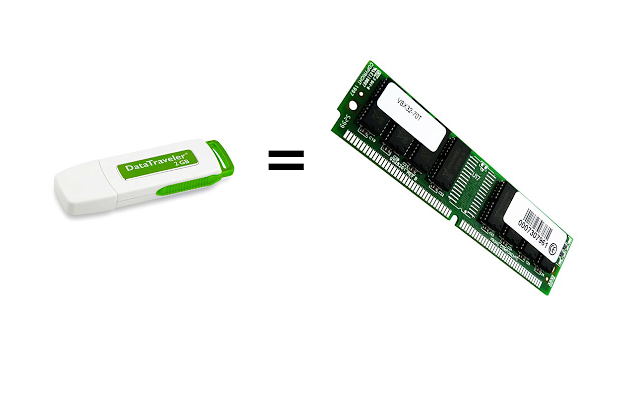
Here’s the honest, up-to-date truth: you cannot truly increase physical RAM with a USB stick. What ReadyBoost did was create a fast cache for frequently used files and data, which could feel like a small speed boost on very old, slow systems. But in modern Windows (especially Windows 11 22H2 and later), ReadyBoost has been completely removed by Microsoft.
Let’s break it down step by step—what it was, why it’s gone, and what actually works in 2026 to get similar (or better) results.
What Was ReadyBoost? (The Old USB-as-RAM Trick)
ReadyBoost was introduced in Windows Vista (2007) and lasted through Windows 10. It let Windows use a portion of a fast USB flash drive (or SD card) as an extra cache layer between your main storage (HDD/SSD) and physical RAM.
How it worked:
- Windows pre-loaded app data, libraries, and SuperFetch/Prefetch files onto the USB.
- When you opened programs, it pulled from the fast USB cache instead of the slower hard drive.
- Result: Slightly quicker app launches and multitasking on low-RAM systems with mechanical HDDs.
Requirements back then:
- USB 2.0+ flash drive with at least 256 MB–1 GB free space
- Minimum read speed ~2.5–4 MB/s random 4K reads
- Recommended: 1–3× your physical RAM size (e.g., 4 GB RAM → 4–12 GB USB)
Real benefit: 5–20% faster on sluggish old laptops with 2–4 GB RAM and spinning HDDs. Almost zero gain on SSDs or systems with 8 GB+ RAM.
Why ReadyBoost Is Dead in 2026 (Windows 11 & Beyond)
Microsoft officially removed ReadyBoost starting with Windows 11 version 22H2 (late 2022). In 2026:
- No ReadyBoost tab appears in USB drive Properties (even on older Windows 11 builds it’s hidden or non-functional).
- The feature relied on slow HDDs being the bottleneck—modern PCs use NVMe SSDs that are already 10–50× faster than any USB flash drive.
- SuperFetch/SysMain caching is now far more intelligent and uses RAM + SSD directly.
- Windows 11’s memory compression, virtual memory tweaks, and hardware requirements make USB caching irrelevant (and sometimes counterproductive).
If you plug a USB into a 2025–2026 Windows 11 machine, you won’t see the ReadyBoost option at all.
Can You Still Force It? (Spoiler: Not Really)
Some older Windows 10 machines or custom Windows 11 lite builds might still show the tab (via registry hacks), but:
- Performance gain is negligible or negative.
- USB flash drives are slower than even budget SATA SSDs.
- Risk of wearing out cheap USB sticks with constant writes.
Bottom line: Don’t waste time trying to revive ReadyBoost in 2026.
Better Ways to “Increase” Usable Memory & Speed Up Windows in 2026
Since you can’t add real RAM via USB, focus on these proven methods:
- Increase Virtual Memory (Pagefile) – The Closest Real Alternative
- Windows already uses your SSD/HDD as “virtual RAM” when physical RAM fills up.
- Optimize it manually for better performance.
- Right-click This PC → Properties → Advanced system settings → Advanced tab → Performance Settings → Advanced → Change (Virtual memory).
- Uncheck “Automatically manage paging file size”.
- Select your fastest drive (preferably NVMe SSD).
- Set Custom size:
- Initial = 1.5× your physical RAM
- Maximum = 2–3× your physical RAM
- Click Set → OK → Restart.
- Add Actual Physical RAM (Best Long-Term Fix)
- Upgrade to 16 GB or 32 GB if your motherboard supports it.
- In Peshawar, DDR4/5 modules are affordable now—check local markets or Daraz.pk.
- Free Up RAM Right Now (No Hardware Needed)
- Close background apps via Task Manager (Ctrl+Shift+Esc).
- Disable startup programs: Settings → Apps → Startup.
- Turn off visual effects: Search “Performance Options” → Adjust for best performance.
- Use Storage Sense: Settings → System → Storage → Configure Storage Sense.
- Update Windows & drivers for memory optimizations.
- Switch to a Faster Drive (If You Have HDD)
- Upgrade to SSD → biggest single speed boost possible.
- Even a cheap SATA SSD outperforms any USB ReadyBoost setup.
- Other 2026 Tweaks
- Enable Hardware-accelerated GPU scheduling (Settings → System → Display → Graphics → Default graphics settings).
- Use lightweight antivirus (Windows Defender is fine).
- Clean install Windows if bloated.
Final Verdict for 2026
Using a USB to “increase RAM” via ReadyBoost is obsolete. Modern Windows + SSDs make it pointless. The real upgrades are:
- More physical RAM
- Faster storage (SSD)
- Smart virtual memory settings
- Cleaning up software cruft