Screen Casting and Screen Mirroring Explained: What’s the Difference & How to Use It (2026 Guide)
In 2026, sharing your phone screen on a bigger display has become effortless—whether you’re showing family photos on the living room TV, presenting slides in a meeting, gaming on a large screen, or streaming YouTube from your couch. Two terms you hear constantly are screen mirroring and screen casting (or screencasting). People often use them interchangeably, but they are not the same.
This blog post breaks down exactly what each means, their key differences, popular protocols (Miracast, AirPlay, Chromecast), real-world uses, step-by-step setup (especially for Android/iOS users in Pakistan), and which method suits different scenarios.
What is Screen Mirroring?
Screen mirroring duplicates your device’s entire screen in real-time onto another display (TV, monitor, projector, or PC). Everything you do on your phone—swiping, opening apps, typing, notifications—appears exactly the same on the bigger screen.
- It’s like holding a giant mirror of your phone.
- Latency (delay) can be noticeable in fast-action scenarios like gaming.
- Useful for: presentations, showing non-castable apps, troubleshooting, or full desktop-like sharing.
What is Screen Casting (Screencasting)?
Screen casting sends specific content (a video, photo slideshow, or music) from your device to another display. Your phone acts as a remote control—the content plays independently on the TV, while your phone can do other things (browse, reply to messages) without interrupting playback.
- No full screen duplication; only the selected media streams.
- Lower latency for media; optimized for efficiency.
- Useful for: watching Netflix/YouTube on TV, playing Spotify through home speakers, or sharing a single photo/video without exposing notifications.
Key Differences: Mirroring vs Casting
| Feature | Screen Mirroring | Screen Casting |
|---|---|---|
| What is shared | Entire device screen (real-time duplicate) | Specific content (video, music, photos) |
| Device control | Phone controls everything shown | Phone acts as remote; TV handles playback |
| Multitasking | Limited (phone screen is busy mirroring) | Full (use phone freely while content plays) |
| Latency | Higher (noticeable in games/apps) | Lower for media |
| Battery drain | Higher (constant transmission) | Lower |
| Best for | Presentations, demos, full apps | Streaming movies, music, photos |
| Common protocols | Miracast, AirPlay (mirror mode), Smart View | Google Cast/Chromecast, AirPlay (media) |
In short: Mirroring shows everything; casting shows one thing smartly.
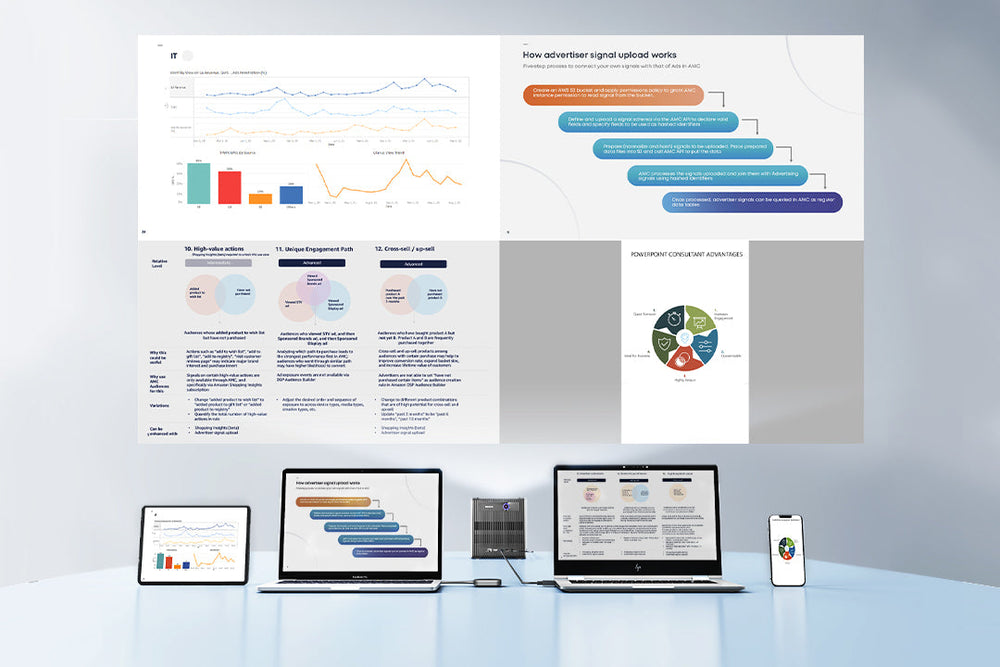
What is Screen Mirroring? – CZUR TECH
Popular Protocols & Devices in 2026
- Miracast (Wi-Fi Alliance standard): Built-in on many Android phones and Windows PCs. No internet needed (Wi-Fi Direct). Works with compatible smart TVs or dongles.
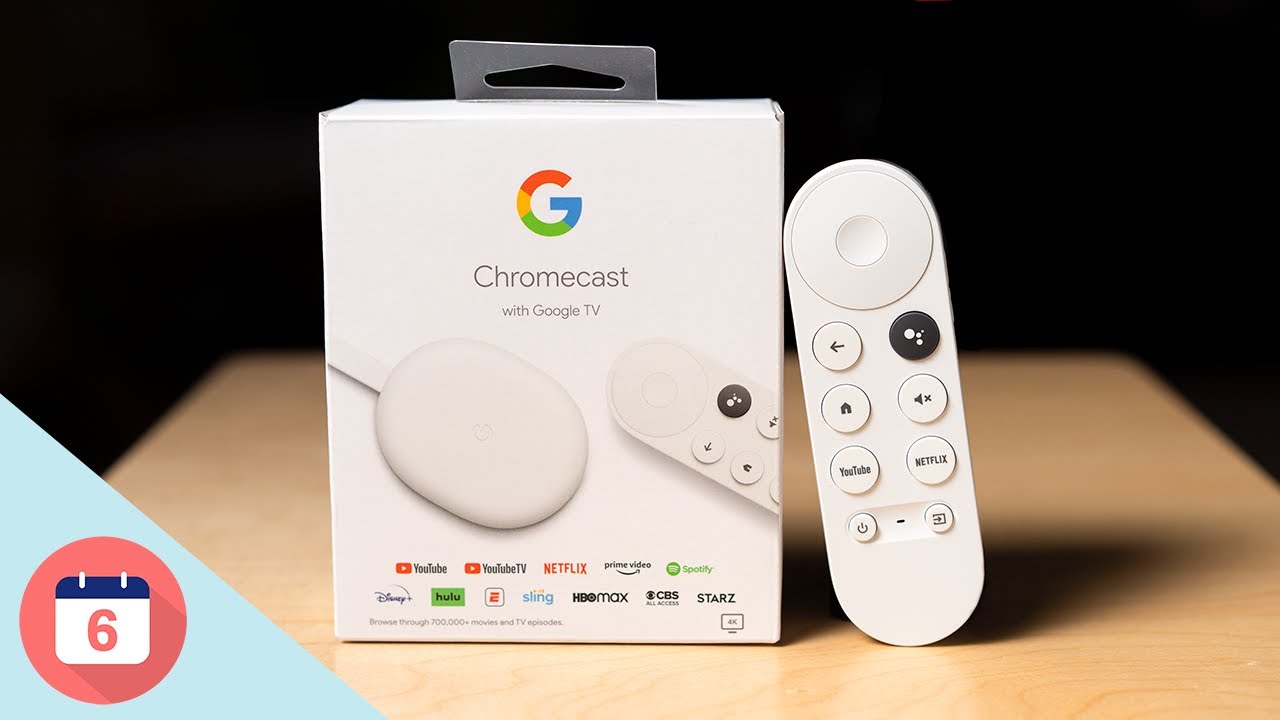
- Google Cast / Chromecast: Google’s protocol. Excellent for casting from YouTube, Netflix, etc. Chromecast with Google TV devices are popular and affordable in Pakistan (~Rs. 8,000–15,000 on Daraz).
- AirPlay (Apple): Seamless for iPhone/iPad/Mac to Apple TV or compatible smart TVs. Supports both mirroring and casting.
- Smart View (Samsung): Miracast-based for Galaxy phones to Samsung TVs.
- Other apps: AirDroid Cast, LetsView, PigeonCast for cross-platform (free tiers available).

How to Set It Up (Step-by-Step for Pakistan Users)
1. Android Phone to TV (Most Common in Pakistan)
- Ensure phone & TV on same Wi-Fi.
- Samsung: Swipe down → Smart View → Select TV → Start now.
- Other Android (Xiaomi, Infinix, Tecno, Realme): Settings → Connected devices → Cast / Screen Cast / Wireless Display → Pick TV.
- If TV lacks support: Buy Miracast dongle (~Rs. 2,000–4,000) or Chromecast (~Rs. 10,000).
- For apps like YouTube: Tap Cast icon → Select TV.
2. iPhone to TV
- Control Center (swipe down from top-right) → Screen Mirroring icon → Choose TV (via AirPlay).
- Needs AirPlay-compatible TV or Apple TV/compatible dongle.
3. Laptop/PC to TV
- Windows: Settings → System → Display → Connect to wireless display (Miracast).
- Mac: Menu bar → Screen Mirroring → Select device (AirPlay).
Pro tip: For low-latency gaming or presentations, wired HDMI is still king (USB-C to HDMI adapter ~Rs. 1,500).
Common Uses in 2026
- Family movie nights: Cast Netflix/YouTube to TV.
- Gaming: Mirror mobile games to big screen (PUBG, Free Fire).
- Work/education: Mirror slides or Zoom calls.
- Photo sharing: Cast albums without everyone crowding around your phone.
Pros, Cons & Tips
Pros: Wireless freedom, bigger screen experience, no cables clutter. Cons: Needs same Wi-Fi, possible lag on weak networks, battery drain on mirroring. Tips for Pakistan: Daraz/ local markets (Saddar Islamabad) have cheap Miracast/Chromecast alternatives. Test compatibility first—many Chinese smart TVs support Miracast.
Final Thoughts
Screen mirroring gives you a full duplicate—great for control and demos. Screen casting is smarter for media—play once, multitask freely. In 2026, most devices support both via built-in tools or cheap dongles.
Which do you use more—mirroring or casting? Trying to mirror your Infinix/Samsung to TV? Share your setup or issues in the comments—happy to help Islamabad folks troubleshoot!